
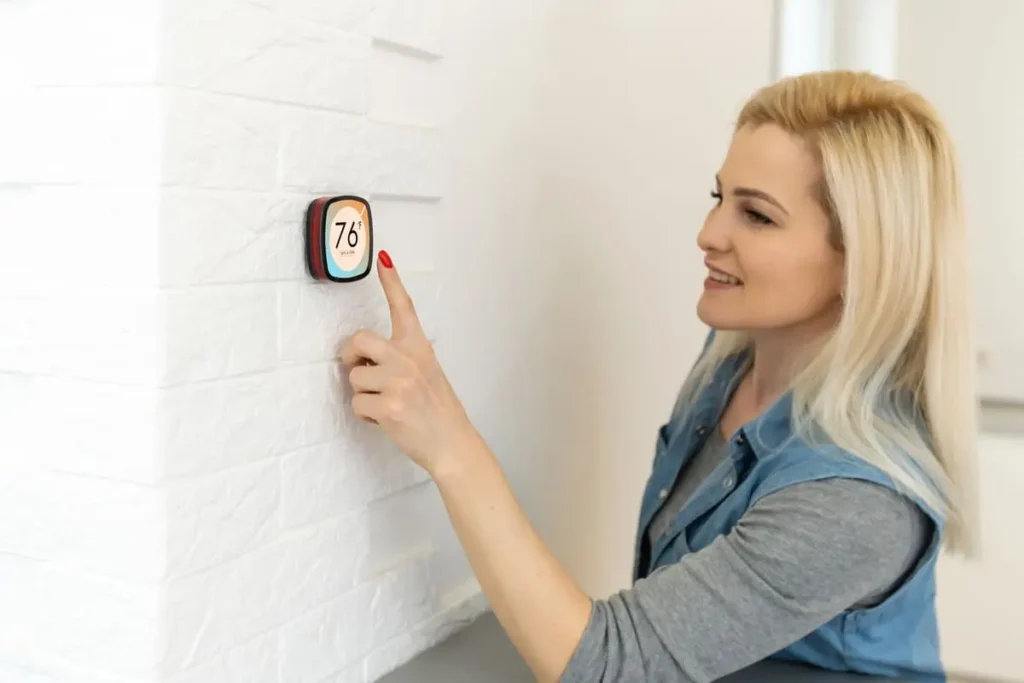
If you searched how to reset amazon smart thermostat faceplate, begin with a soft reset, which is a simple restart. Pull the faceplate right off the wall plate, wait for a few moments and then push it back on. This solves most of the problems and does not erase any data at all. If the thermostat still fails to work, you can do a partial reset by pressing Up and Mode for 10 seconds until you see “rEs”, and then holding Mode through the countdown.
Which Reset Do You Need?
Amazon builds in three levels. Each one goes deeper and takes longer to recover from, so start at the top. Most people searching how to reset amazon smart thermostat faceplate only need the first row.
| Method | Buttons | What it erases | Use it when |
|---|---|---|---|
| Restart | None, pull the faceplate off and back on | Nothing | Frozen screen, app glitch, stuck update |
| Partial reset | Up and Mode for 10 seconds, then hold Mode | Everything except HVAC settings | Unresponsive in the Alexa app, voice commands fail, Wi-Fi trouble |
| Factory reset | Up, Down and Mode for 10 seconds, then hold Mode | Everything, including HVAC settings | Partial reset didn’t work, you rewired it or you’re moving |
The amazon smart thermostat factory reset sits last for a reason. After it, the thermostat forgets what kind of heating and cooling system it’s wired to, and you go through the whole setup again.
How to Reset Amazon Smart Thermostat Faceplate (the Restart)
The faceplate is the part with the display and buttons on the front. It locks onto a wall plate that holds the wiring, so there are no screws to unscrew.
- Grasp the faceplate by its sides and pull it straight out toward you.
- Wait a few seconds. If the thermostat seems stuck on a software update, wait for 30 seconds instead. According to Amazon, that will force an update.
- Snap it back onto the wall plate and push it in until you hear it click.
- Give it a minute to boot up and reconnect.
That’s the whole answer to how to reset amazon smart thermostat faceplate, and Amazon’s own help pages say a restart clears most common problems. Your schedule, Wi-Fi details and HVAC setup all stay put.
Don’t pry it off with a screwdriver.
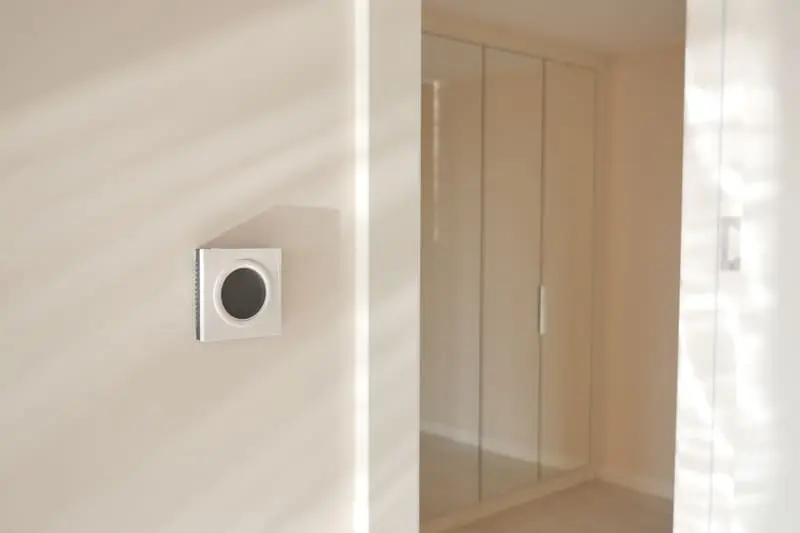
Partial Reset When Your Amazon Smart Thermostat Is Unresponsive
Use this when the Alexa app shows the amazon smart thermostat unresponsive label, Alexa ignores voice commands or the thermostat won’t stay on Wi-Fi.
- Hold down the Up button along with the middle Mode button for 10 seconds, until you see “rEs”.
- Release the buttons, then press and hold the Mode button once more. A five-second countdown runs and the thermostat resets.
- Wait for an amazon smart thermostat red exclamation point on the screen. At this step, it’s normal. It shows that the thermostat is ready to be configured.
- Launch the Alexa app and complete the configuration process to connect it to Wi-Fi.
A partial reset clears everything but the HVAC settings, so you won’t be asked those wiring questions again. You’ll have to start all over with scheduling and setting up Wi-Fi.
The typical error here is stopping after step 1. Just because it says “rEs” doesn’t mean it’s finished. If you pressed two buttons and nothing happened, you most likely skipped step 2 or used the wrong combination. If the partial reset completes and the problem still persists, move on to the amazon smart thermostat factory reset.
Amazon Smart Thermostat Factory Reset
Do an amazon smart thermostat factory reset only when a partial reset didn’t help, after you’ve moved wires or before you pass the thermostat on to someone else.
- Push and hold Up, Down and Mode for 10 seconds, until “rEs” is displayed.
- Hold down the Mode button through the five-second countdown, until “SEt” appears.
- In the Alexa app, remove the old Amazon Smart Thermostat from your devices.
- Add it again as a new device and follow all the setup steps, including those related to wiring.
Do not miss step 3. Skipping it is one of the main reasons the thermostat does not show up in the app later.
What the Amazon Smart Thermostat Red Exclamation Point Means
A blinking amazon smart thermostat red exclamation point is the Info icon. It means that your thermostat is giving you a warning message. It does not mean that you have a low battery. Because this thermostat uses power from your HVAC system through the C wire, there’s no battery to replace, whatever some guides say.
Amazon’s troubleshooting guide mentions the following reasons for a flashing red light:
- A Wi-Fi problem, or Wi-Fi that isn’t set up yet
- Setup error
- Lost time
- Memory failure
- Sensor problem
- Heat pump problem
To determine which reason you may have, go to the Alexa app > Devices > Thermostat > your thermostat > Settings > Thermostat configuration > Thermostat icons.
Wi-Fi and time errors usually clear once you reconnect Wi-Fi. A heat pump error needs an HVAC technician. For anything else, go back to the how to reset amazon smart thermostat faceplate restart before trying anything bigger.
Different colors have different meanings. A blinking yellow light indicates that emergency or auxiliary heating is working, or that compressor protection requires a delay of 5 to 7 minutes. A solid green light indicates that your utility is running an energy-saving event.
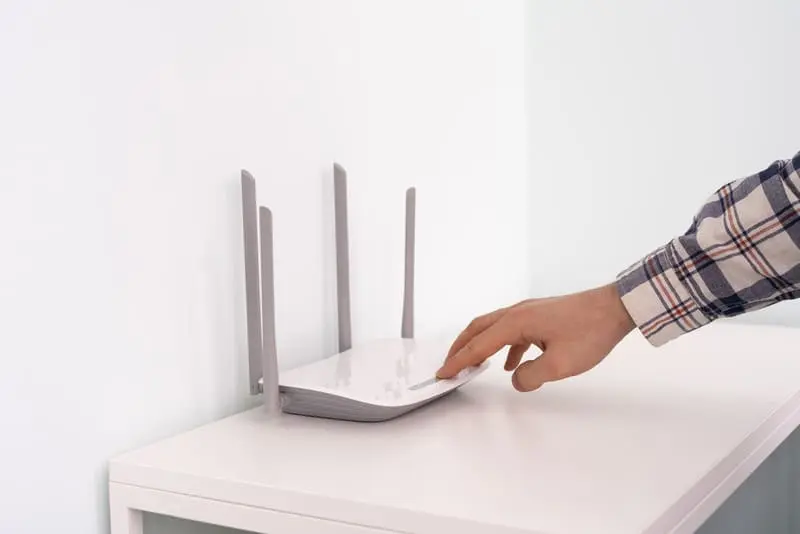
When a Reset Won’t Fix It
If you’ve tried how to reset amazon smart thermostat faceplate and a partial reset with no change, the thermostat may be fine. Check what’s around it.
Wi-Fi. The Amazon Smart Thermostat connects to only 2.4 GHz Wi-Fi. A new router, a password change or a new internet provider can knock it offline. Start by restarting the router. Then update your Wi-Fi connection in the Alexa app: Devices, Thermostat, your thermostat, Device Settings, Thermostat configuration, Wi-Fi.
Blank screen. A blank display almost always means there’s no power, and a reset won’t help. The display dims when idle, so press the center button first to wake it up. If the screen stays dark, check the circuit breaker or power switch for your furnace or air handler, make sure the furnace door is closed and check the fuse on the furnace board. Amazon also notes that the display will be blank without a working C wire.
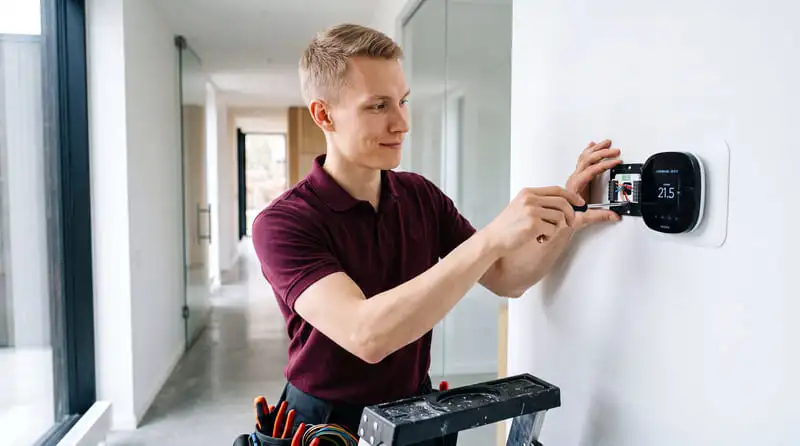
The wiring after a DIY job. If you’re still working out how to install amazon smart thermostat wiring, this one catches a lot of people. Four wires at the wall and six at the furnace is normal, because two wires go out to the outdoor AC unit. However, a blue wire is not automatically a C wire. If you switch the Y wire to the C position, the heat will work but the air conditioner won’t come on. If there’s no C wire, you need a C-wire adapter. It changes which terminals you use, so follow its own instructions.
The thermostat will not work with electric baseboard heat, millivolt systems or line-voltage thermostats.
How to Clean Smart Thermostat Without Damaging It
The faceplate is already in your hands while you work through how to reset amazon smart thermostat faceplate, so give it a wipe. HomeServe points out that a dirty thermostat can read several degrees off. Here’s how to clean smart thermostat parts safely:
- Wipe the screen and controls with a dry microfiber cloth.
- If there is dirt, dampen the cloth slightly and wring it out before use.
- Turn off the power at the circuit breaker before opening the unit or touching the wall plate.
Most advice on how to clean smart thermostat screens comes down to one rule: no liquid sprayed on the device.
While you’re at it, take some time to inspect the HVAC filter. According to the U.S. Department of Energy, you should clean or replace the filter every month or two during the cooling season. The ENERGY STAR maintenance checklist says to check central AC and furnace filters once a month. Changing filters is something you can do yourself. Coil cleaning and refrigerant checks belong to a technician’s yearly tune-up.
FAQs
Can you manually adjust an Amazon Smart Thermostat?
Yes. The Up and Down buttons increase or decrease the set temperature, and the center button changes the mode. Amazon’s customer service team has confirmed that you can adjust it on the device when there’s no internet connection.
Does a faceplate restart erase my settings?
No. When people search how to reset amazon smart thermostat faceplate, they usually mean this restart, and it keeps your schedule, Wi-Fi and HVAC setup.
How do I know if my smart thermostat is bad?
Warning signs include a blank screen even though the furnace has power, buttons that never respond and an amazon smart thermostat unresponsive status that returns right after a factory reset on a working network. Rule out power, Wi-Fi and wiring first. If it still fails, contact Amazon support about a replacement. A basic thermostat is a cheap stand-in until it arrives.
What is the average lifespan of a smart thermostat?
According to HomeServe, a well-maintained thermostat can last around 10 years.
Can I install a smart thermostat myself?
Usually, yes. The Alexa app walks you through how to install amazon smart thermostat step by step, and the compatibility checker on Amazon’s product page tells you up front if you need a C-wire adapter. Turn off the power at the breaker before you start. If the old thermostat has wires thicker than 18 gauge, wire nuts or a 120V label, stop and call an HVAC professional.
Before You Call Amazon Support
Most of the time, how to reset amazon smart thermostat faceplate comes down to just a few seconds with the faceplate removed. If the steps above don’t help, follow this order: partial reset, Wi-Fi check and finally a factory reset. Write down the message your app shows and which resets you’ve tried, because customer service may ask.
Once it’s up and running, set a schedule. The U.S. Department of Energy says you can save up to 10% a year by turning your thermostat back 7 to 10°F for 8 hours a day. Use these smart home automation ideas to set up routines, and add a smart home energy monitor to track your savings.